
How to Automate an Entire Job With Claude Cowork (Step by Step)

Most people use Claude like a search engine with better grammar. Ask a question, get an answer, close the tab. That’s fine for one-off tasks, but it’s leaving 90% of Cowork’s capability on the table.
Claude Cowork is a persistent desktop agent. It has access to your files, your browser, your terminal, and a scheduling system that can run tasks while you sleep. The real power isn’t in what it answers; it’s in what you can make it do on a schedule, with context, without you sitting there.
This walkthrough covers how to go from “I use Claude for chat” to “Claude runs entire workflows for me autonomously.” The approach is manual-first: you do each step yourself, refine the process, then automate it.
Step 1: Map the Role
Before automating anything, map the job you want to automate. Every role, whether it’s content manager, project coordinator, or research analyst, breaks down into a set of recurring tasks with defined inputs and outputs.
Role Mapping Template
Role: [What job are you automating?]

Recurring tasks:
1. [Task name] - [Frequency] - [Input] - [Output]
2. [Task name] - [Frequency] - [Input] - [Output]
3. [Task name] - [Frequency] - [Input] - [Output]

Decision points:
- [Where does this role need judgment?]
- [What edge cases come up?]

Dependencies:
- [What tools/data does this role need access to?]
- [Who does this role coordinate with?]
Here’s a real example. We automated a content operations role that handles article pipeline management, stream content updates, site deployments, and task board hygiene. The role mapping looked like this:
Content Ops Role Map
Each of those tasks has a defined process. The daily scan follows a specific checklist. Article writing follows a 20-step publishing workflow. Deployments follow a preview-then-publish sequence. Map the process for each task before trying to automate any of them.
Step 2: Manual First, Automate Second
This is the most important principle in the whole article. Do not automate a task you haven’t done manually at least 3-5 times.
Every time you run through a process manually, you discover edge cases that weren’t obvious upfront. The pipeline card is missing a field. The deploy fails because a preview server isn’t running. The image generation API blocks multiple downloads. These are the things that will break your automation, and you’ll only find them by doing the work yourself first.
The Manual-First Rule
We learned this the hard way. Our first attempt at automating image generation skipped the manual phase. Chrome security blocked batch downloads. The automation tried to bypass human approval gates by building a script to call the API directly. We scrapped the whole approach and started over. Three manual runs would have surfaced both issues in minutes instead of the hours we spent building a workaround that never shipped.
Step 3: Give Cowork Context
Cowork is only as good as the context you give it. A bare Cowork session with no files, no memory, and no instructions is just a chat window. A Cowork session with a structured workspace, memory files, and role instructions becomes an autonomous operator.
The context layers that matter:
CLAUDE.md is your agent’s persistent memory. It loads at the start of every session. Put your key conventions, active priorities, known gotchas, and pointers to deeper documentation here. Keep it concise; everything in this file costs tokens in every conversation.
Memory files are on-demand reference material. Workflow docs, role instructions, project details. Cowork reads these when a specific task calls for them.
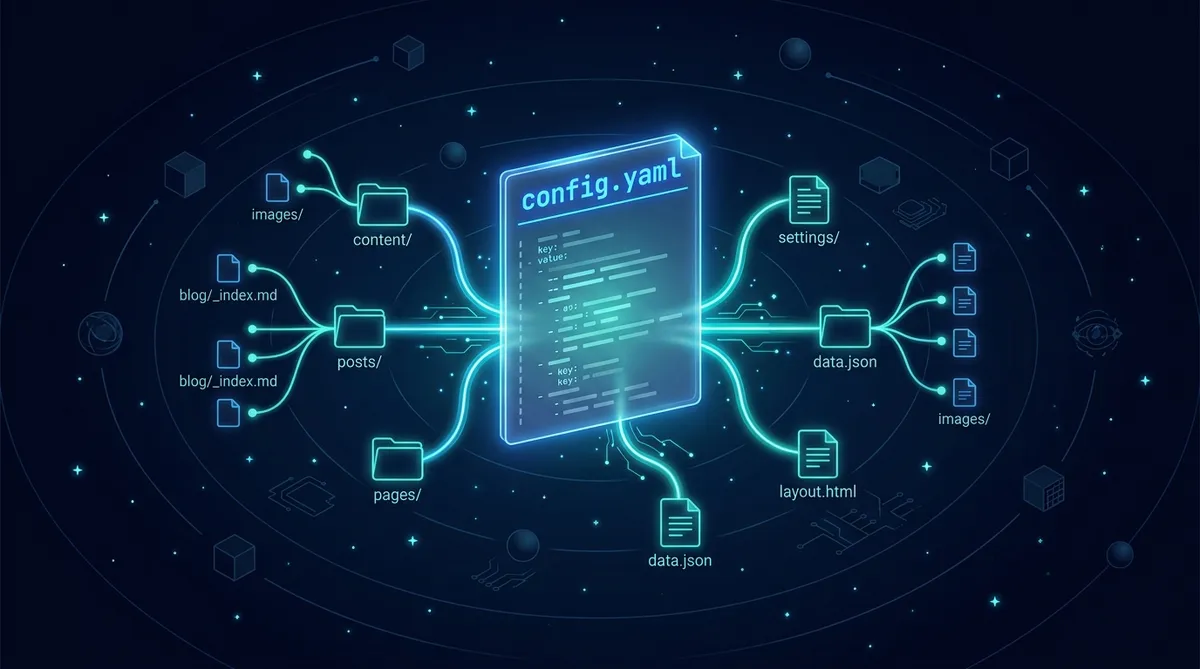
The file system is the state layer. Task boards as markdown files. Pipeline cards in folder structures. Configuration in JSON. Cowork reads and writes these files to track progress, and the state persists between sessions.
Minimal Context Setup for Automation
claude-home/
├── CLAUDE.md           # Core instructions, always loaded
├── TASKS.md            # Task board (Kanban-style markdown)
├── memory/
│   ├── workflows/      # Step-by-step process docs
│   ├── roles/          # Role instruction files
│   └── projects/       # Project-specific context
└── content-pipeline/   # Working data (cards, drafts, assets)
Step 4: Build Scheduled Tasks
Cowork’s scheduled tasks are cron-style triggers that fire at specific times. Each scheduled task runs in its own session with full access to your workspace files and tools.
This is where the automation actually happens. Instead of opening Cowork and saying “process the task board,” you schedule it to happen every morning at 9am.
Scheduled Task Examples
# Daily task board processing (weekdays at 9am)
Task: daily-board-review
Cron: 0 9 * * 1-5
Prompt: "Read TASKS.md. Process any items in the intake queue.
  Move completed items to Done. Groom the Active column by
  priority. Report what changed."

# Weekly content pipeline check (Monday at 10am)
Task: weekly-pipeline-review
Cron: 0 10 * * 1
Prompt: "Scan content-pipeline/in-progress/ for stalled cards
  (no updates in 3+ days). Check content-pipeline/review/ for
  items waiting on approval. Summarize pipeline status."

# Stream content update (Tuesday and Friday at 2pm)
Task: stream-update
Cron: 0 14 * * 2,5
Prompt: "Read the stream guidelines. Write 2 new stream items
  for each active site. Save to the appropriate stream.json
  files. Report what was added."
Each task gets a clear, specific prompt that tells Cowork exactly what to do, what files to read, and what output to produce. Vague prompts like “manage the content pipeline” will produce vague results. Specific prompts like “scan content-pipeline/in-progress/ for stalled cards” produce reliable, repeatable output.
One-Time Tasks
fireAt parameter. Use an ISO timestamp for things like “remind me tomorrow at 3pm to check the deploy” or “run this migration next Tuesday morning.”
Step 5: Monitor and Iterate
Automation isn’t set-and-forget on day one. It’s set-and-monitor until the edge cases are handled, then it’s set-and-forget.
After your first week of scheduled tasks, review what happened:
- Did tasks fire at the right times?
- Did Cowork produce the expected output?
- Were there errors or edge cases you didn’t anticipate?
- Did any task take significantly longer than expected?
Adjust the prompts based on what you find. If the board review keeps missing a specific type of item, add explicit instructions for that case. If the pipeline check produces too much output, narrow the scope. Each iteration makes the automation more reliable.
Notification on Completion
notifyOnCompletion on your scheduled tasks. You’ll get a notification when each task finishes, so you can review the output without having to check manually. Turn it off once you trust the automation.
The Bigger Picture: Systems, Not Prompts
The difference between using AI as a chat tool and using AI as an automation layer is the difference between asking questions and building systems. A question gets you one answer. A system gets you answers every day without asking.
The workflow we’ve described here follows a pattern that applies to any role you want to automate: map the tasks, do them manually, build the context, schedule the automation, iterate until it’s reliable. The specific tools (Cowork, scheduled tasks, CLAUDE.md) are implementation details. The pattern is universal.
Start small. Pick one recurring task that takes you 15 minutes and happens every day. Automate that one task. Once it’s running reliably, pick the next one. Within a few weeks, you’ll have a persistent AI assistant that handles the routine work while you focus on the decisions that actually need a human.
Start Automating
Map one role you perform. Identify its three most repetitive tasks. Run each one manually in Cowork this week. Next week, schedule them.
Share this article
If this helped, pass it along.